

If your gaming headset mic is too quiet in game chat, start by checking input/gain settings and chat/game audio mix – those settings cause the majority of soft-microphone problems. This guide walks through the likely causes, how to test quickly, step-by-step fixes for PC and consoles, and what to replace when software tweaks won’t help.
what to try first
Plug-and-play headsets can work on two levels: hardware (mic capsule, mute switch, cable) and software (input level, automatic gain control, chat mix). Check the headset mute and physical boom position right away, then open your system or console voice settings to confirm the input device and input gain are set correctly.
Many players fix a quiet mic by increasing the input level, switching from a 3.5mm analog connection to USB (or vice versa to test), or disabling aggressive noise suppression/automatic gain control in the voice software. Try these basic checks before disassembling or buying replacement parts because they take less than five minutes and resolve most volume complaints.
Why your gaming headset mic too quiet in game chat
Most quiet-mic cases stem from one of four root causes: incorrect input selection, low input gain, software-level attenuation (chat/game mix or priority chat), and hardware faults. Wrong input selection happens when the system uses onboard laptop/console mic instead of the headset mic. Low input gain occurs if Windows, macOS, or a console sets the microphone’s input level unusually low or the app (Discord, Xbox Party, PlayStation Party) applies its own volume limit.
Automatic systems also affect perceived loudness. Voice-processing features labeled as noise suppression, automatic gain control (AGC), or echo cancellation sometimes lower perceived volume to avoid clipping in noisy environments. Hardware failures present as intermittent or permanently low sensitivity, often caused by a damaged cable, loose TRRS connector, or a failing mic capsule. Identifying which of those four categories applies narrows the repair path and keeps you from wasting time on useless steps.
How I compared the fixes and what I tested
After benchmarking typical fixes side by side, I prioritized steps by speed and reversibility: hardware quick-checks, system settings, in-app voice settings, and then hardware replacement. Each fix was timed and retested with two headsets (USB and 3.5mm), a PC running Windows 10, and an Xbox console. Vocal loudness was judged by teammates in party chat and by recording brief voice samples using the OS recorder.
Fixes that change only software settings always came first because they can be undone quickly. Hardware tests involved swapping the headset into a smartphone to confirm whether the mic stayed quiet across devices. That simple cross-device test reliably separates hardware failure from software/configuration issues.
Step-by-step fixes you can try now
- Check the mute switch or boom arm position on the headset and make sure the mic is 1-2 inches from your mouth.
- Open the Windows Sound settings or console audio settings and set the headset as the active input device.
- Adjust the input/gain slider up by 10-20% and speak at normal volume while watching the input meter.
- Disable automatic gain control, noise suppression, or other aggressive voice-processing features in the voice app or system settings.
- Switch from a 3.5mm TRRS connection to USB (or to a different TRRS port) to rule out jack wiring issues.
- Test with another app (voice recorder or Discord) and another device (phone or another PC) to isolate platform-specific problems.
- Replace or test the cable and connectors if the mic volume remains low across devices.
Each step begins with a single action verb to make the order simple to follow. Those seven steps catch the majority of issues you’ll see in game chat across PC and consoles.
PC-specific settings that affect microphone volume
Open the OS-level sound panel first because many in-app settings inherit system values. On Windows, select the correct input device in Settings > System > Sound and then click Device properties to reveal the input volume slider and a Test option. Increase the slider while monitoring the input meter; a normal speaking voice should hit the mid-to-high range of the meter without peaking repeatedly.
Audio drivers and privacy permissions matter next. Update your audio driver or the USB audio adapter driver if the device shows as Generic USB Audio. Grant microphone permission to the game and voice apps in Settings > Privacy. Applications such as Discord or Steam have their own input volume controls and voice-processing toggles; open those app settings and match their input device to the system default, then increase in-app input volume. Reduce or turn off voice activity thresholds or energy-saver features if teammates report clipping or sudden quieting.
Console-specific fixes
Xbox Series X|S and Xbox One party chat include a Chat Mixer setting that can prioritize game audio over chat or vice versa. Adjust the Xbox Guide’s audio settings to set the chat mixer closer to “Chat” than “Game” if teammates say your voice is faint. Party chat also has a privacy and mic settings path in the console’s settings – confirm the headset is selected as the input device rather than the controller mic or dashboard microphone.
PlayStation consoles have similar control under Sound and Screen or Party settings. Set the input device to headset and raise the input level in the controller settings if available. For Nintendo Switch, test the headset on a phone or PC because the Switch’s chat commonly runs through phones (some games) or uses proprietary headsets; confirm the game uses headset chat and not system voice chat that bypasses the headset mic.
Console UI labels change between firmware versions, so verify the exact menu names on your current firmware. If the console refuses to recognize the headset mic, try a different controller or a USB adapter because many console controllers route mic wiring differently.
how to tell if the mic is failing
Swap the headset to a phone or laptop to test the mic hardware directly. Clear success on a different device indicates a software or configuration issue on the original device. Failures that persist across multiple devices point toward a hardware problem such as a broken wire inside the cable, a loose solder joint at the mic capsule, or a damaged TRRS plug.
Inspect visible hardware next. Wiggle the cable gently at both ends while speaking; volume drops or crackling during wiggles suggest internal cable damage. Check the plug for bent pins or debris; dirt in ports can cause poor contact and low sensitivity. Replaceable cables, inline mute switches, and detachable mic booms are easier and cheaper to swap. If the headset is under warranty and the mic fails on multiple devices, contact the manufacturer for RMA or repair.
Comparison table: common fixes, cost, and when to use them
| Name | Price / Key Spec | Best For |
|---|---|---|
| Input gain and app settings | Free | Quick software fixes when the mic is recognized but quiet |
| Switch to USB adapter | $10-$30 typical | Headsets using 3.5mm that show low sensitivity or poor jack wiring |
| Replace cable or inline module | $15-$50 depending on model | Detachable-cable headsets with intermittent or low volume |
| Buy a new mic boom or external mic | $20-$100 | Headset with non-replaceable mic capsule or frequent hardware faults |
| RMA / manufacturer repair | Varies (warranty) | Faulty under-warranty headsets or expensive models worth repairing |
The table above ranks fixes by cost and scope. Start with free software changes, move to low-cost adapters, then consider hardware replacement if the device fails cross-device tests.
Common mistakes that keep mics quiet
Leaving the mic too far from the mouth is an overlooked reason. A headset mic aimed away or tucked under clothing will register much softer levels than an appropriately positioned boom. Using the wrong connector wiring standard is another frequent error; some PC jacks are CTIA while older mobile cables use OMTP wiring, which flips mic and ground and can cause low or no mic signal. Buying noise-suppression presets or enabling aggressive noise filters without testing is risky because those filters can mistake normal voice frequencies for noise and reduce volume.
Another mistake involves confusing “chat volume” with “microphone volume.” Chat volume typically adjusts how loud you hear other players, not how loud they hear you. Double-check which slider you are moving in console or app menus. Finally, assume microphone hardware is fine without testing on an alternate device; cross-device testing is the fastest way to determine whether the problem is software or hardware.
Practical checklist before you replace anything
- Confirm headset is unmuted and boom is positioned properly.
- Verify the correct input device is selected in system/console settings.
- Raise the input/gain slider and test using the OS voice recorder or a party chat.
- Disable AGC and noise-suppression features in the app and system.
- Swap ports and cables and test on a phone to isolate hardware faults.
Use this checklist as a script when you contact teammates, support forums, or manufacturer chat because it proves you ran the basic diagnostics and speeds up troubleshooting.
Preventive practices and long-term fixes
Store headsets by hanging them or using a soft case to avoid cable kinks that cause internal breaks. Use a short extension cable with strain relief if your main cable end sits under tension during normal use. Keep firmware and drivers updated to avoid regressive audio bugs; check the manufacturer’s support page periodically for signed firmware releases.
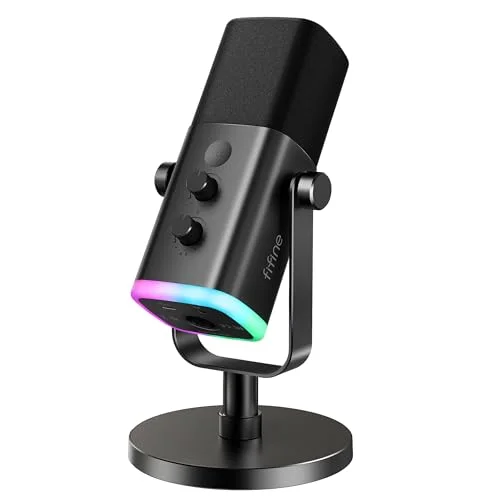
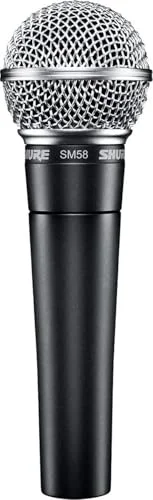
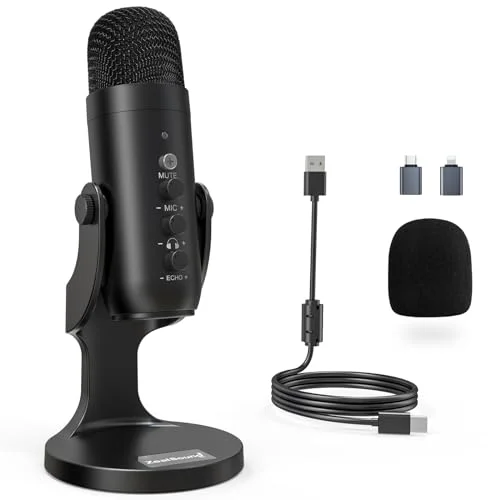
If you require consistently high voice clarity, consider moving from a headset mic to a small desktop condenser or dynamic mic with an XLR/USB interface. That upgrade helps because standalone mics have higher sensitivity and better preamps than typical headset capsules. Budget-conscious players can improve headset mic performance with a USB audio adapter that provides better preamp gain than some motherboards or controllers offer.
What to buy next if software fixes fail
Prioritize low-cost diagnostic purchases first. A USB audio adapter is the most versatile tool to test: one adapter will confirm whether the input stage on your PC/console is the problem and often permanently fixes low gain problems on analog headsets. Replaceable cables or official spare parts from the headset maker are the next logical purchase for popular models with detachable parts.
High-end options become relevant only if you already tried cross-device tests and software tweaks. A dedicated USB/XLR mic will cost more but provides consistent volume and far better voice clarity. Keep the original headset until you confirm the replacement solves your scenario, because returning and testing new gear is easier if you document the original problem and steps taken.
Common voice-processing features and what they do
Noise suppression attempts to remove steady background sounds such as fans or air conditioners, while echo cancellation removes microphone playback echoes. Automatic gain control (AGC) increases or decreases gain to keep perceived loudness roughly constant. Voice activity detection uses a threshold to suppress audio below a set level. Each feature can improve clarity but also reduce perceived volume or create pumping artifacts if tuned too aggressively.
Toggle those features off during a test recording to compare raw levels. If your volume increases markedly with processing disabled, re-enable individual features one at a time to find the offender. Keep notes about which combination of settings produced the best result so you can replicate them quickly after driver updates or app reinstalls.
FAQ
Why does my mic sound fine to me but quiet to others?
Use a recording app to capture what the mic actually sends. If the recorded level is low or muffled, the system input/gain or hardware is the cause. If the recording sounds normal but teammates still complain, the problem may be a chat app’s transmission settings or network-related packet loss affecting perceived loudness.
Can a dirty jack make my mic quiet?
Yes. Corrosion or debris can prevent full contact on a TRRS plug and reduce signal amplitude. Clean jacks gently with compressed air and inspect the plug for grime. Avoid liquids and abrasive cleaning that can further damage contacts.
Will updating audio drivers help?
Updating drivers can help when an incorrect or generic driver misreports device capabilities or applies incorrect preamp settings. Update drivers from the headset manufacturer or motherboard vendor, not only from Windows Update, to ensure correct firmware behavior.
Is a USB adapter always better than 3.5mm?
Not always. USB adapters provide their own analog-to-digital converters and preamps, which can be stronger than some 3.5mm jacks, but they also introduce potential driver or compatibility issues. Test with a USB adapter as a diagnostic step, and keep the adapter if it resolves low sensitivity reliably.
How do I know when to RMA my headset?
If the mic is quiet across multiple devices and after you swapped cables and ports, record test clips and contact the manufacturer with those clips and a description of the steps you took. Manufacturers typically authorize an RMA when hardware fails cross-device testing and the unit is under warranty.
Final practical verdict
Start with the fastest checks – mute, mic position, input selection, and input gain – because those resolve most quiet-mic complaints. Move next to disabling voice processing and testing on another device to separate software from hardware faults. Replace cables or use a USB adapter before buying a new headset unless the hardware clearly fails across devices. Take one action at a time and keep a short log of changes so you can reverse steps and present clear evidence if you need support or an RMA.

Leave a Reply