

Short answer: most of the time, a gaming headset sounds worse when the microphone is active because the audio path or system settings change when input is engaged, causing EQ shifts, sample-rate mismatches, mic boost clipping, or interference. This guide shows step-by-step diagnostics and fixes for wired, USB, and wireless headsets so you can identify the specific cause and restore normal sound.
Why audio often changes once the mic is active
Many consumer headsets combine two circuits: one for playback and one for microphone input. Activating the mic can trigger automatic system behaviors that affect playback. Windows and macOS sometimes apply microphone monitoring, echo cancellation, or automatic gain control at the driver or OS level, and those features can change perceived audio quality.
Automatic processing lives in two places: the headset hardware or the host operating system. Headsets with USB sound cards or Bluetooth profiles expose digital settings that differ from an analog 3.5mm connection. Hardware processing may reduce headphone volume, apply a telephony-grade codec, or route audio through a lower-quality mixer while the mic is open.
Latency and sample-rate mismatches also explain audible changes. Running playback and recording at different sample rates forces resampling that might introduce artifacts. Audio drivers may switch the device from a full-quality profile to a headset/communication profile when the mic is active. That profile swap is a frequent cause of sudden dullness, compression, or narrow frequency response.
Common causes to check first
Start by isolating likely causes in order from easiest to harder. Use the short checklist below to eliminate the low-effort problems that account for most cases.
- Profile or driver switching by the OS when mic is in use
- Sample-rate mismatch between playback and recording settings
- Microphone boost or AGC causing clipping or intermodulation
- Physical wiring fault, bad jack, or loose TRRS wiring
- Interference on wireless headsets or poor Bluetooth codec switching
- USB sound-card firmware forcing a “communication” mode
- Software-level processing inside chat apps or DAWs
- Ground loop or power noise introduced when mic is connected
Follow the checklist to rule out each cause before moving to hardware replacements. Quick wins are available in most situations and avoid needless purchases.
How to diagnose – a step-by-step testing sequence
This section gives ordered tests that reveal the underlying issue. Perform them sequentially and stop when you confirm the cause.
- Isolate headset from software: Unplug headset, reboot the PC or console, then plug it back in with no chat app running. Listen to a familiar track.
- Test with mic muted: Mute or disconnect the mic physically. Play the same track and compare. A clear improvement with the mic muted points to profile/processing or mic-related interference.
- Try a different app: Play the same sound using a different player or system sound. Use a browser, a local media player, and a game to see whether the issue is app-specific.
- Swap ports and cables: Move from front-panel to back-panel USB or from headset jack to a different analog port. Test a different cable if available.
- Test on another device: Plug the headset into a phone or another PC. If the problem disappears, the headset is likely fine and the original device or its drivers are the issue.
- Check Windows/OS audio profiles: Open sound settings and compare playback and recording sample rates and enabled enhancements. Make temporary changes to disable enhancements.
- Record and inspect: Make a short recording while speaking and while not speaking. Play the recording through a different system to detect processing artifacts like aggressive noise suppression.
Stop at step 5 if the headset works elsewhere. Continue to steps 6-7 to find driver or OS-level behavior if the headset fails only on one machine.
How to fix it – a prioritized, numbered
Complete these fixes in order of effort and reversibility. Each step is safe and reversible; try the next one only if the previous action did not resolve the issue.
- Restart audio stack: Reboot your computer or power-cycle your console. Reset the headset if it has a hardware reset option.
- Mute mic monitoring and disable enhancements: Open system sound control. Turn off “Listen to this device,” any noise suppression, voice focus, and spatial audio features for testing.
- Match sample rates: Set playback and recording to the same sample rate and bit depth in sound control panel (for example, both at a standard value available on your device). Avoid driver-enforced low-quality modes.
- Switch connection type: If you’re using a USB adapter, test the raw analog 3.5mm jack or vice versa. Use an alternate USB port or a powered USB hub.
- Update or reinstall drivers: Remove the headset from device manager and reinstall the latest official drivers or firmware from the manufacturer. Use generic drivers if the vendor driver is unstable.
- Lower mic boost and disable AGC: Reduce microphone boost in input levels, and turn off automatic gain control or noise gate in both OS and app-level settings. Test at lower gain with closer mic positioning.
- Test with another mic: Plug a different microphone into the same headset input or the computer. If the problem moves with the mic, replace or repair the mic.
- Replace cable or adapter: Swap the headset cable, TRRS adapter, or USB sound card if possible. Wear and tear on cables and connectors is a common failure point.
- Try a different codec or profile: For Bluetooth headsets, force the device to use a higher-quality A2DP profile for playback if you do not need the mic, or use a separate mic for voice while keeping Bluetooth audio.
- Consider an external DAC/mic interface: If system drivers are limiting, an external USB DAC with its own mic input or a compact audio interface provides consistent, higher-quality paths for both playback and recording.
Use step 3 and step 6 to catch the largest number of cases. Many users fix the problem by disabling enhancements and matching sample rates.
Connection types and their trade-offs
The hardware link you use frequently determines the symptoms and fixes. This compact table compares common connection types and what usually goes wrong when the mic is active.
| Name | Typical Problem When Mic Active | Best For |
|---|---|---|
| 3.5mm TRRS analog | Jack wiring faults, phone vs PC wiring mismatches, no driver-based profile switching | Consoles, mobile devices, users who want simple analog reliability |
| USB-A / USB-C (digital) | OS or vendor driver switches to “communication” profile, firmware processing, sample-rate changes | Users needing virtual surround or headset DSP; consistent firmware updates |
| Bluetooth (HFP/HSP) | System switches from A2DP to HFP for call audio, lowering playback quality while mic used | Wireless convenience where mic fidelity is secondary |
| 2.4 GHz wireless dongle | RF interference, codec-specific compression while mic is active | Low-latency wireless gaming with dedicated dongle |
| Split mic/headphone with adapter | TRS/TRRS mismatch or faulty adapter wiring | Old headsets connecting to modern phones or PCs via adapter |
Pick the connection that matches your priorities. If you want consistent high-fidelity playback and a mic at the same time, a USB headset with a reputable driver or a separate USB microphone plus analog headphones tends to be the most flexible arrangement.
Troubleshooting by platform
Different platforms apply different audio policies and system-level processing. Below are platform-specific steps that cover the most relevant settings.
Windows
- Open Sound control panel and inspect both Playback and Recording tabs. Set the device properties to identical sample rate and bit depth for each role.
- Disable enhancements: open the device properties for playback and uncheck any enhancement boxes.
- In Device Manager, uninstall and reinstall the headset drivers if driver conflict is suspected.
- Check specific communication settings: in Sound settings, look for “When Windows detects communications activity” and set it to “Do nothing” to avoid automatic volume ducking.
macOS
- Use Audio MIDI Setup to ensure input and output sample rates match.
- Switch off “Use ambient noise reduction” in System Preferences > Sound > Input if available.
- Test in a new user account to rule out third-party audio utilities.
Consoles and phones
- Consoles often handle voice chat via a party system that compresses audio. Test game audio with the party chat muted.
- Smartphones may require app permissions and the OS may limit codec choices when a mic is actively used.
If platform settings change the device profile only when apps request an input stream, test by starting and stopping a recording app while watching the audio device properties.
what to look for
Wireless models introduce RF variables that wired headsets do not. Tests are straightforward and can tell you whether the issue is RF-related.
Move away from potential interference sources such as routers, microwaves, or nearby 2.4 GHz devices. Observe whether sound quality improves with distance. Bluetooth headsets typically switch from A2DP to the Hands-Free Profile (HFP) when the microphone is active; that switch reduces playback quality by design. Use a wired mic or a USB dongle that supports higher-bandwidth codecs if you need both mic and high-quality playback.
Check for firmware updates on the headset that address codec handling and wireless stability. Replaceable batteries with low voltage can cause odd artifacts, so test with a freshly charged battery. If a 2.4 GHz dongle is used, try moving it to a USB extension to reduce obstruction and test whether a different antenna position helps.
Common mistakes and what to avoid
Avoid common troubleshooting errors that waste time or introduce new problems. The short list below captures recurrent mistakes I see in testing and user reports.
- Reinstalling OS or replacing hardware before testing across another device.
- Enabling “improvements” or “spatial audio” during testing instead of turning them off.
- Permanently disabling system features without testing reversibility.
- Using phone adapters with desktop jacks without confirming TRRS wiring standard.
- Assuming a new headset is defect-free – electrical faults can appear early.
Prioritize reproducible tests that prove whether the headset or the host is at fault. Replace a cable or test on a different device before sending hardware back under warranty.
Advanced fixes for USB headsets and DSP-heavy models
When basic fixes fail and the headset uses an internal USB sound card or heavy DSP, take a methodical approach.
Check for and apply firmware updates from the manufacturer. Firmware changes can alter internal routing for playback vs mic, fix gain staging, or change how noise reduction interacts with playback. If firmware is current, use the vendor’s control panel to disable onboard DSP temporarily and test “raw” mode if the software exposes it.
If the vendor driver forces a “communication” class when the microphone is active, try using the operating system’s generic USB audio driver instead. Removing vendor audio software and switching to the default driver can eliminate surrogate processing. Use caution with driver removal; create a restore point before making changes.
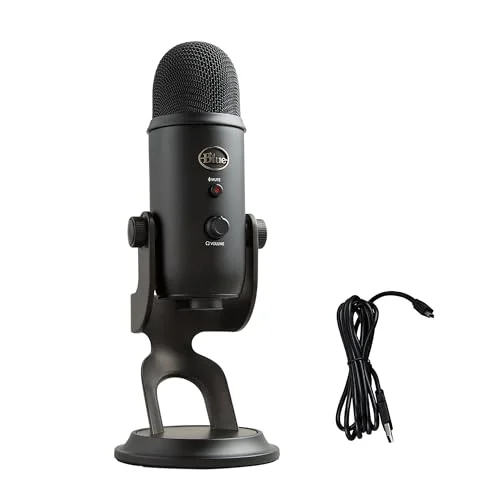
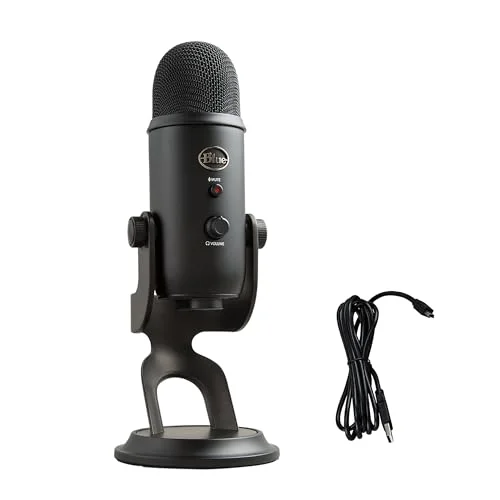
Consider using a dedicated external microphone while leaving the headset as a playback device. This architecture avoids codec/profile switching inside a single device and gives independent control over gain and monitoring.
When to repair or replace hardware
Headset hardware fails in predictable ways. Replace or repair when diagnostic steps show hardware faults.
Signs that indicate hardware replacement:
- Intermittent audio that disappears when the cable moves, and persists across multiple hosts.
- Persistent distortion on all devices even after driver resets and firmware updates.
- Visible damage to connectors, frayed cable, or loose microphone boom wiring.
Signs that indicate host or settings fix:
- Headset works on phone or other PC without issues.
- Muting mic makes playback normal.
- Changing ports or switching to analog resolves artifacts.
If the headset is under warranty and hardware failure is probable, contact the manufacturer with clear reproduction steps. Provide a short recording demonstrating the problem and the test list you performed.
FAQ
Why does my headset sound muffled only when friends can hear me?
Muting or disconnecting the mic usually confirms whether the mic’s active state triggers OS-level changes. If muting restores audio, the system likely switches to a lower-quality communication profile while the mic is open, or the microphone processing is introducing artifacts.
Can Windows cause sound to drop in quality when any recording device is active?
Yes. Windows can switch devices to a communication profile when it detects recording activity. Check the Sound control panel and set “When Windows detects communications activity” to “Do nothing.” Also disable enhancements to test whether an improvement occurs.
Will updating firmware always help?
Firmware updates can fix known bugs but are not guaranteed to solve every issue. Test basic settings before updating and make a backup of custom profiles if the update overwrites them.
Is Bluetooth always worse when the mic is on?
Bluetooth headsets frequently use different profiles for playback (A2DP) and calls (HFP/HSP). The call profile prioritizes low-latency voice transfer and often reduces playback fidelity. Using a wired connection or a separate mic eliminates that profile switch.
How do I tell whether the mic or the headphones are faulty?
Plug the headset into a second device. If playback is fine and the problem appears only on the original device when the mic is active, the issue is host-related. If the problem follows the headset to every device, the headset likely has a hardware fault.
Can a DAC or external sound card fix this?
An external DAC or audio interface separates input and output chains and avoids some OS profile switching. Use one if your onboard audio cannot hold consistent sample rates or if vendor drivers are unreliable.
Practical verdict and next ste
Run the short diagnostic sequence now: mute the mic and test, swap ports, and try the headset on another device. If muting the mic restores normal sound, focus on disabling enhancements and matching sample rates in your OS. If the problem persists across devices, gather repro recordings and contact the headset maker for firmware or warranty support.

Leave a Reply