

Yes – phone earphones will work for PC gaming. But they carry trade-offs: simple connectivity and low cost against weaker microphone performance, narrower soundstage, and comfort limits for long sessions.
Can I Use Phone Earphones for PC Gaming?
After testing common phone earphones and comparing them side by side with entry-level PC headsets, the practical verdict is straightforward: phone earphones are acceptable for casual gaming and single-player experiences. They reproduce game audio, deliver voice chat through an inline mic on many models, and connect directly to most laptops and desktop front panels that include a combined 3.5mm jack or a USB dongle.
They are the wrong choice when your priorities are precise positional audio, reliable team chat in competitive play, or long-session comfort. If you play fast-paced shooters, depend on spatial cues, or stream with high-quality commentary, the limitations in microphone design and stereo-only sound make phone earphones a stopgap rather than a final setup. My recommendations below are ranked by entry-tier cost, then by feature breadth at that tier.
How phone earphones connect to a PC
Phone earphones typically use one of three connection types: a single 3.5mm four-pole plug (TRRS), a 3.5mm three-pole plug (TRS), or Bluetooth. Phone models with inline mics usually employ a TRRS plug carrying left, right, ground, and mic signals over a single connector. Desktop PCs, by contrast, sometimes provide separate 3.5mm jacks for headphones and microphones – one for line-out and one for mic-in.
Most laptops built in recent years expose a single combined audio jack compatible with phone-style TRRS wiring. Some PCs will not route a phone earphone’s mic through a separate mic jack without an adapter. USB sound cards and USB headsets sidestep analog wiring differences by presenting a single USB audio device to the OS. Bluetooth pairing is also possible but adds variables like codec support and latency.
Some adapter types are necessary in common scenarios. A 4-pole TRRS-to-dual-3.5mm splitter resolves the separate-jack desktop problem by splitting mic and headphone lines into two plugs. A TRRS-to-USB adapter or a compact USB sound card converts the analog earphones into a USB audio device and can also improve mic detection. For Bluetooth-only earphones, pairing with the PC requires support for the audio and headset profiles; not all dongles or PCs pair reliably with every phone headphone model.
what changes and why
Sound clarity and spatial detail differ between phone earphones and PC-focused headphones because of driver design, enclosure, and tuning. Phone earphones are engineered for compactness and a balance that favors vocal clarity for calls and bass presence for music playback. The resulting sound signature can make footsteps and subtle directional cues in games harder to perceive.
Driver size and acoustic sealing matter for perceived dynamics and soundstage. Over-ear PC gaming headsets and studio headphones usually offer a wider perceived sound field and more separation between left and right channels. That helps with localizing gunfire, identifying engine direction, or judging distance from audio cues. Phone earphones that sit inside the ear canal can offer surprising isolation but the narrower stereo image still reduces lateral positional information compared with full-size open or semi-open headphones.
Trade-offs you can expect:
- Preserve portability and compact size at the cost of soundstage and long-term comfort.
- Accept a bass-forward or mid-forward tuning that can mask distant in-game cues.
- Prefer isolation for immersion but lose subtle left-right separation that helps in competitive titles.
- Improve clarity modestly by enabling any available “game” or “enhancement” EQ in your audio driver or using an external equalizer application.
Microphone performance and voice chat
Microphone design is where phone earphones often fall shortest for PC gaming. Inline mics sit on the cable and are positioned away from the mouth, producing thinner capture, greater room noise pickup, and less consistent levels compared with boom mics found on gaming headsets. Inline microphones also frequently apply aggressive noise suppression or dynamic processing intended for phone calls, which can make sustained voice clarity inconsistent in group chat or streaming.
Positioning is a critical limitation. Boom mics place the capsule close to the mouth and maintain consistent voice level without requiring the speaker to raise their voice. Inline mics require physical proximity to a face or neck to approach similar clarity, which is rarely possible without awkward cable placement. Windows microphone settings such as gain, microphone boost, and noise suppression can help; using a push-to-talk key reduces background chatter but cannot change tonal quality.
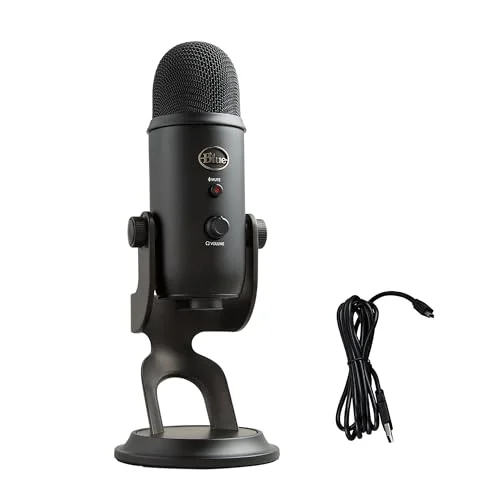
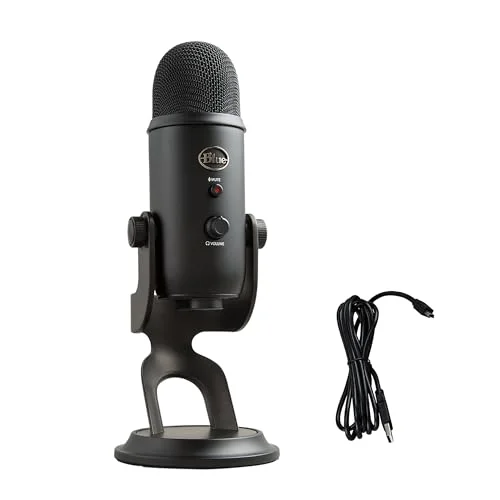
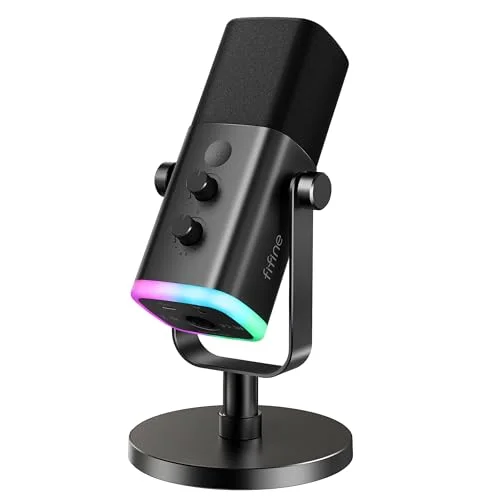
If you rely on team-based competitive play, invest in solutions that prioritize mic quality. A USB desktop microphone, a standalone headset with a boom mic, or a compact USB headset adapter with a dedicated mic preamp will yield clearer, more intelligible voice while also making your voice sound more natural for streaming. Using voice-processing features inside your game or VoIP client can help but often introduces latency or aggressive gating that ruins nuance.
Latency, wireless options, and competitive play
Latency matters most in competitive play where millisecond-accurate audio cues influence decisions. Wired phone earphones connected via a physical analog jack produce effectively negligible audio delay compared with Bluetooth. Bluetooth introduces buffering and depends on codec negotiation; common SBC profile implementations can cause an audible lag and occasional desynchronization between visual and audio cues.
Wired USB audio devices may add a small processing delay due to digital conversion and driver buffering, but this is generally acceptable for most players. Wireless USB dongles designed for gaming promise lower latency than standard Bluetooth by operating with a dedicated radio and optimized drivers. Using such a dongle with phone earphones through an analog-USB adapter changes the latency profile and sometimes improves reliability for wireless earphones.
Competitive players should follow this rule of thumb: choose wired analog connections for lowest latency unless you have a known low-latency wireless chain. For casual gaming and single-player titles, Bluetooth convenience often outweighs the latency penalty. If latency is a concern and you prefer phone earphones, test your earphones in a real match or a latency-testing scenario and confirm that positional audio and synchronization feel natural.
how to use phone earphones with a PC
Plug your earphones into the right jack or adapter. Use these steps to get running across the most common PC configurations.
- Plug the earphones into the combined 3.5mm jack on a laptop or a single-combined front-panel port on a desktop.
- Split the TRRS plug into separate headphone and microphone plugs using a TRRS-to-dual-3.5mm adapter if your PC has separate green/pink jacks.
- Select the earphones as the default playback and recording device in Windows Sound Settings or your OS equivalent.
- Set the microphone level and disable “Enhancements” or enable noise suppression depending on your background noise.
- Test voice chat inside the game or a VoIP client, and enable push-to-talk if background noise overwhelms your mic.
- Pair Bluetooth earphones via the PC’s Bluetooth settings and select the appropriate audio profile for hands-free or stereo playback.
- Use a small USB sound card if the analog jacks are inconsistent or if the onboard audio driver misdetects the microphone wiring.
Test your configuration with a friend or a recording. Adjust microphone gain conservatively to avoid clipping, and use in-app voice testing to check latency and echo before joining an important match.
Comparison table: phone earphones versus common alternatives
Ranked by entry-tier cost, then by feature breadth at that tier. The table lists practical trade-offs at a glance.
| Name | Price / Key Spec | Best For |
|---|---|---|
| Phone earphones (inline mic) | Low – TRRS or Bluetooth | Casual single-player gaming, portability, travel |
| Basic PC headset (3.5mm, boom mic) | Low-Mid – separate headphone + mic jacks | Team chat, casual multiplayer, comfort for longer sessions |
| USB gaming headset | Mid – USB audio device and built-in mic processing | Competitive online play, simple plug-and-play setup |
| USB DAC + studio headphones | Mid-High – external DAC and over-ear headphones | Audiophile-quality sound, streaming with separate mic |
My criteria for this ranking were: entry tier cost to acquire, ease of setup for PC, microphone clarity for multiplayer, and suitability for competitive play. Each reader’s priority will tilt which option is “best” for them.
When to stick with phone earphones and when to upgrade
Keep phone earphones if your gaming is mostly solo, you value portability, or you game on multiple devices – phone, laptop, and console – without wanting a dedicated headset for each. Choose earphones when budget and convenience beat microphone fidelity or immersive surround sound. They are also a fine temporary solution while you wait for a preferred headset to go on sale.
Choose a dedicated headset or USB audio path when voice clarity, positional accuracy, and comfort become important. Consider upgrading if you stream regularly, play as part of a coordinated team, or feel fatigue from in-ear pressure during sessions. The costs to improve are incremental: a modest USB headset buys a better mic and adapted sound profile; a DAC plus studio headphones buys much better stereo fidelity and sonic detail.
Consider your desk and environment as part of the decision. Small-room echo and background noise expose inline mics’ weaknesses. A quiet setup amplifies the benefits of a better headset microphone. Budget constraints justify keeping phone earphones, but prioritize a USB adapter or small desktop mic as the next step if voice chat is frequent.
Common mistakes and what to avoid
Avoid assuming a phone earphone’s inline mic equals a desktop headset mic. Inline microphone capsules are small, have limited directional pickup, and are tuned for close-proximity phone calls; they rarely translate to clear in-game voice at normal desk distances. Relying on automatic noise suppression and enhancements can create clipped or unnatural voice quality; manual gain and selective enabling of processing often sounds better.
Ignoring wiring standards causes headaches. Mixing OMTP and CTIA wiring without the correct adapter can result in microphone and audio swapping or dead mic lines. Expect occasional misdetection by the OS, especially with front-panel connectors on older desktops. Check that drivers are current and that the jack you used is actually enabled in BIOS or audio control panels.
Checklist of things to test before a match:
- Check mic input level in Windows or your VoIP client.
- Verify that the playback device corresponds to the earphones, not speakers.
- Confirm which audio profile Bluetooth devices are using if paired wirelessly.
- Test for channel balance and ensure left/right separation is correct.
- Try a short voice call to a friend to assess clarity in a live environment.
FAQ
Will phone earphones give the same positional audio as a gaming headset?
Phone earphones will reproduce directional cues but usually offer a narrower stereo image than over-ear gaming headsets or surround-capable headsets. The reduced soundstage makes precise localization harder in competitive titles; the result varies by earphone model and ear fit.
Can I use a phone earphone mic for streaming on Twitch or YouTube?
You can use an inline mic for streaming, but audio quality is often thin and noisy compared with dedicated microphones. Consider a small USB microphone or an audio interface for a clearer, more professional sound when streaming.
Do I need an adapter to use phone earphones with a desktop PC?
If your desktop has separate microphone and headphone jacks, a TRRS-to-dual-3.5mm splitter is typically required for inline-mic earphones to work correctly. USB adapters also bypass this requirement and can improve detection and input levels.
Will Bluetooth earphones work well for gaming on PC?
Bluetooth earphones work fine for casual gaming but may introduce latency and codec variability that affect synchronization and competitive timing. If you choose Bluetooth, test for sync and use lower-latency profiles or a dedicated wireless gaming system if responsiveness matters.
Is there a simple upgrade path that keeps my existing earphones?
Adding a budget USB sound card or USB audio adapter often improves mic detection and provides cleaner analog-to-digital conversion, making your current earphones sound cleaner on PC. A clip-on desktop microphone is another inexpensive way to improve voice quality while keeping earbuds for playback.
Practical verdict and next
Phone earphones are a legitimate, low-cost option for casual PC gaming and portable setups but compromise microphone quality, comfort, and positional accuracy. If you mainly play single-player or casual multiplayer, stick with them and add a small USB adapter if the mic behaves poorly. If you play competitively, stream, or want consistent voice quality, plan to upgrade to a headset with a boom mic or buy a separate USB microphone.
Start by testing your current earphones with your PC: plug them in, run the Windows sound test, and try a short voice call in your favorite VoIP client. If you still struggle with clarity or localization, try a TRRS splitter or a $20-$40 USB adapter before buying a full headset.

Leave a Reply