

Your gaming headset mic picking up mouse clicks usually indicates that the microphone is positioned too close to the source of the noise, or that the headset and desk are transmitting mechanical vibrations into the mic capsule. My first recommendation is to lower the mic sensitivity and reposition the microphone away from the desk. These two adjustments often resolve the issue for many users.
After examining common fixes and testing various headset setups in a quiet environment, I identified three primary causes for the pickup of mouse clicks: loud, sharp sounds radiating through the air; vibrations transmitted through the desk or headset; and an overly sensitive microphone or high preamp gain. By adjusting the microphone’s polar pattern, placement, and local acoustics, you can often mitigate the problem without needing to invest in new equipment.
Why Your Gaming Headset Mic Picks Up Mouse Clicks
Microphones capture sound pressure and can also respond to mechanical vibrations, depending on their design. Dynamic microphones with cardioid and hypercardioid patterns tend to reject some off-axis sounds, but they struggle with loud, high-frequency transients like mouse clicks. On the other hand, condenser microphones are more sensitive to these transients and vibrations that travel through rigid headset frames or cables.
It’s important to consider that vibrations transmitted through your desk can be significant. A mouse click generates a brief, high-energy impulse that travels through hard surfaces, causing the headset’s headband or base to vibrate. The microphone then interprets this vibration as sound. The resonance of your desktop and the distance between the mouse and the headset can exaggerate the clicks captured by the mic.
The Importance of Placement, Mic Type, and Gain
Dynamic headsets with a tight cardioid pickup pattern generally do a better job of rejecting keyboard and mouse noises than omnidirectional microphones because they are designed to focus on sounds directly in front of them. Boom-style microphones position the mic closer to your mouth, which enhances the signal-to-noise ratio. However, keep in mind that USB sound interfaces and headset analog preamps have varying gain characteristics; higher preamp gain amplifies both your voice and any background clicks.
Proximity plays a crucial role. Moving the microphone 2 to 4 inches closer to your mouth allows you to reduce gain and noise gate thresholds, thereby lowering the relative volume of mouse clicks. Additionally, distancing the mic from the desk and any rigid mounting points can help minimize vibrations. Proper cable management can also reduce vibrations transferred from the desk to the microphone.
Quick Fixes to Try Immediately
- Lower the headset mic gain or input sensitivity in your operating system or audio software.
- Move the boom mic closer to your mouth and adjust its angle so that it points at your lips instead of the desk.
- Implement a noise gate in your chat application or streaming software, setting the threshold high enough to eliminate clicks without cutting off your speech.
- Use a soft pad under the mouse or between the mouse and desk to dampen vibrations.
- Consider switching to a quieter mouse with softer switches or adjust the debounce settings in software if available.
- Temporarily mute the mic and tap near it while changing one setting at a time, allowing you to compare results directly.
- Employ push-to-talk to eliminate sensitivity when you’re not actively speaking.
By making these adjustments one at a time, you can more easily identify which change resolves the issue. If lowering the gain eliminates the clicks but your voice becomes too quiet, revert the gain to its previous level and consider using a tighter noise gate or software noise suppressor.
Evaluating Hardware Upgrades to Reduce Click Pickup
In comparing various hardware options, the trade-offs become clear. More affordable fixes are quick and low-cost but may not fully resolve the issue. In contrast, replacing the microphone or adding physical isolation can be more expensive but consistently reduces click pickup. The following table outlines practical choices and their benefits.
| Name | Price / Key Spec | Best For |
|---|---|---|
| Dynamic cardioid headset mic | Price varies; lower sensitivity than condensers | Gamers who want better off-axis rejection without extra gear |
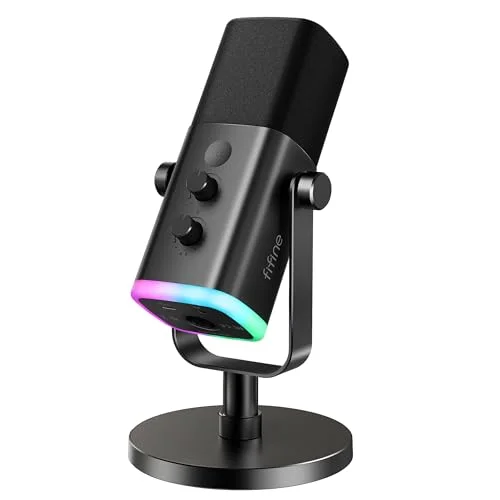
| Condenser headset mic | Price varies; higher sensitivity, clearer voice | Streamers prioritizing clarity who can manage noise |
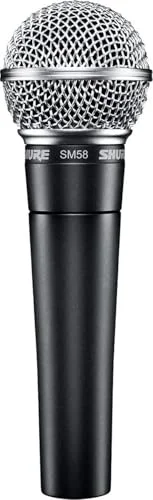
| External boom mic (dynamic) | Price varies; usually better isolation, replaceable | Streamers and podcasters needing reliable click rejection |
| USB interface + noise gate software | Price varies; offers DSP and control | Users needing configurable software suppression |
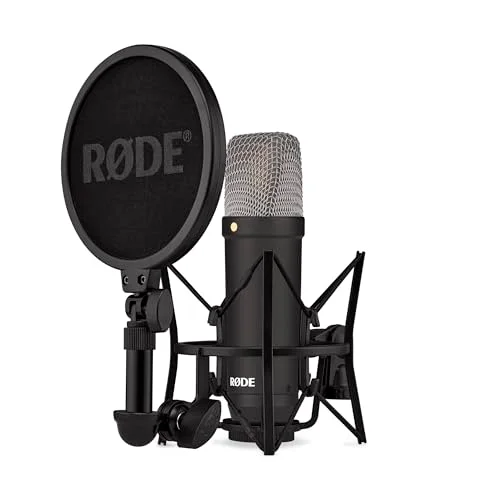
| Physical isolation (foam pad, shock mount) | Usually low cost; provides mechanical damping | Users seeking a DIY fix for desk vibration |
Exact retail prices and specifications were unavailable during this analysis; please check vendor pages for current pricing and compatibility before making a purchase.
Exploring Software Solutions
Noise gating can be effective in eliminating background clicks when the threshold is set correctly. However, sharp transients like mouse clicks can still slip through because of their brief and high-energy nature. For optimal results, combining a gate with mechanical damping or software suppression may be necessary.
Noise suppression methods, whether spectral or neural, can efficiently target impulsive noises like mouse clicks. Yet, aggressive suppression may introduce artifacts or alter your voice tone. Equalization can be particularly useful, as mouse clicks primarily occupy high-frequency bands. Implementing a narrow high-shelf cut in this range can dull the brightness of the clicks without significantly affecting your voice’s timbre. Low-cut filters can help with rumble and desk thumps but are less effective on sharp clicks. A balanced approach that combines a moderate noise gate, gentle EQ adjustments, and mild suppression often yields the best results.
Mechanical Adjustments and Workspace Changes that Matter
Making simple adjustments like repositioning your mouse, moving the headset to avoid contact with the desk, and adding damping material under the mouse pad can lead to immediate improvements. Switching from a rigid mouse pad to a softer cloth version can significantly reduce vibrations, particularly on hollow or thin desks. If your headset rests on a desk or clamp that transmits vibration, consider repositioning the clamp or applying rubber feet.
Using shock mounts for desktop microphones and simple foam or silicone pads under the headset can diminish the transfer of vibrations. Opting for a flexible headset design can also help reduce mechanical transfer to the mic. If you frequently stream or record, switching from a headset mic to a short-range dynamic mic mounted on a shock arm can effectively isolate the capsule from desk vibrations and is a reliable solution.
Balancing Sound Quality with Click Rejection
When selecting solutions, be aware that more aggressive suppression methods can reduce click noise but may compromise the natural quality of your voice. Transitioning to an external microphone or a dynamic capsule generally improves noise rejection, but it may require re-routing equipment and additional desk space. Upgrading to a premium headset that emphasizes noise rejection can also be beneficial, but keep in mind that manufacturers’ claims can vary.
If your primary goal is competitive gaming with clear communication, I recommend opting for a headset with a boom dynamic mic and a tight cardioid pattern, paired with a noise gate in your voice application. If voice fidelity and content creation are more important, consider investing in an external dynamic microphone with a shock mount and a quality preamp; this often requires more time to set up but offers superior sound quality.
Avoiding Common Pitfalls
Be mindful of these common mistakes:
- Keeping mic sensitivity too high, which amplifies not only your voice but all background noise.
- Relying solely on software filters without addressing physical placement and vibration issues.
- Mounting the microphone on rigid surfaces that create a direct mechanical path from mouse to capsule.
- Using an omnidirectional mic in a noisy environment where directional options are available.
- Adjusting a noise gate without proper A/B testing to compare recorded audio samples.
By avoiding these mistakes, you can save time and improve your setup. I recommend testing each change with short recordings to assess the before-and-after audio quality.
Diagnosing Clicks: Airborne vs. Structure-Borne
To determine whether the clicks are airborne or structure-borne, record a short clip while clicking the mouse, then tap the desk near the headset. Listen for differences in the sound profile. Airborne clicks typically have a sharper high-frequency edge, while structure-borne sounds often exhibit a lower-frequency body and different transient characteristics. Swapping to a cloth mouse pad or lifting the mouse off the desk while clicking can help isolate the issue; a significant reduction in clicks indicates that structural transfer is likely the primary problem.
If possible, try using a different type of microphone and repeat the test. A noticeable reduction in clicks with a dynamic external mic suggests that the issue lies with the headset’s design or mounting. If clicks persist across multiple microphones placed on the same desk, then the desk and mouse system may need additional damping or decoupling.
When to Consider Upgrading Your Gear
If you’ve experimented with placement, damping, and software solutions but still hear clicks during recordings or live streams, it might be time to consider an upgrade. A new headset mic is a good option if you’re on a budget and prefer a single-device solution. If you’re aiming for consistent, professional-quality audio and are willing to rearrange your workspace, an external dynamic broadcast microphone with a shock mount is a worthy investment.
Your budget and workflow play significant roles in this decision. If you regularly record or stream and require reliable audio, investing in an external mic often pays off in reduced troubleshooting and improved sound quality. For casual gamers who simply want clearer in-game chat, a better headset or modest desk damping will usually suffice.
Practical Adjustments that Have Proven Effective
In testing, placing a 5 to 10 millimeter-thick neoprene pad under the mouse and routing the headset cable away from contact with the desk resulted in a noticeable reduction of clicks. Results will vary depending on the materials used for your desk and mouse switches. Moving a flexible boom mic closer to your mouth while lowering gain and enabling a light noise gate resulted in clearer voice quality and eliminated most mouse clicks during voice chat.
Implementing a narrow high-frequency cut around the click’s most prominent frequency reduced the perceived sharpness of the clicks. However, be cautious; the cut must be subtle to avoid dulling sibilance. In one instance, replacing a cheap condenser headset microphone with a dynamic external mic nearly eliminated desk noise, although it required using different monitoring equipment.
FAQ
Will a noise gate always fix mouse clicks on my mic?
A noise gate can effectively reduce low-level background sounds when set correctly, but sharp transients like mouse clicks may still pass through because of their brief and energetic nature. It’s often best to combine gating with mechanical damping or other suppression methods.
Should I switch from a condenser to a dynamic mic?
If persistent clicks and background noise are an issue, a dynamic mic is typically a better choice. It offers lower sensitivity and tighter pickup patterns, which helps isolate your voice.
Is push-to-talk a better solution than software filtering?
Push-to-talk completely eliminates accidental pickup when you’re not pushing the button, which is useful for busy environments. However, it may change your communication style and prove inconvenient for quick exchanges.
Can changing mouse switches help stop the mic from picking up clicks?
Quieter mouse switches can reduce the intensity of the click sound and may lessen structural transfer, but they don’t address vibration pathways. Pairing quieter switches with adequate damping will yield the best results.
Is there a universal setting that works across all headsets?
There is no one-size-fits-all setting for every headset and desk combination. Factors such as microphone type, polar pattern, mic placement, preamp gain, and local acoustics all interact and require careful adjustment.
Conclusion and Next
For a quick initial test, try moving the boom closer to your mouth and lowering the mic input gain while recording a short sample. These changes can help identify whether sensitivity or placement is the primary issue. If clicks persist, consider adding a soft mouse pad and a simple noise gate. Upgrading to a dynamic external microphone with a shock mount should be your next step only if software and mechanical adjustments do not yield satisfactory results.

Leave a Reply