

Quick answer: a distant-sounding headset mic almost always comes down to one or a combination of mic positioning, input selection or gain, aggressive audio processing (noise suppression/AGC), a bad connection, or a failing microphone element. Start by checking the mic boom placement, confirming the correct input device in your OS or game, and temporarily disabling noise-suppression/automatic gain features – those three checks fix most “far-away” voice problems.
This guide walks through why your voice can sound distant, how to test each likely cause, platform-specific fixes (PC, Discord, Xbox, PlayStation), the trade-offs of disabling audio processing, and when to repair or replace your headset. The phrase gaming headset mic sounds far away in game chat appears in the title and at the top because readers searching that phrase want immediate fixes; scroll to the step-by-step checks if you want to start troubleshooting now.
Quick fixes to try first when your gaming headset mic sounds far away in game chat
Check mic position and boom orientation. Move the mic to about one to two finger-widths from your mouth and angle the capsule toward your lips; distance, off-axis positioning, or a flipped foam cover can make audio thin and remote.
Confirm the operating system and game are using the headset as the input device. Open your OS sound settings and the in-game voice options and make sure the correct USB or 3.5 mm input is selected; apps often revert to default mics (laptop webcam, controller mic) after updates.
Temporarily disable noise suppression, echo cancellation, and automatic gain control (AGC). Those features can clamp or duck your audio in a way that produces a distant, underwater, or inconsistent volume. Turn them off when testing so you can hear the raw mic behavior.
Swap connection type to isolate hardware problems. Plug a USB headset into a different port, try the 3.5 mm adapter, or connect the headset to a phone to check voice pickup. Wireless headsets can sound distant when battery or Bluetooth codecs force aggressive compression.
Record a short clip with a local recorder (Voice Recorder on Windows, QuickTime on macOS, a phone voice memo) for a controlled sample you can replay and compare against in-game chat. That local sample helps separate microphone problems from platform processing.
How mic position, type, and distance create that “far away” sound
Microphone capsules pick up sound with different polar patterns and sensitivities; a unidirectional (cardioid) capsule will favor the sound source in front of it while an omnidirectional capsule picks up more ambient room noise. If your headset uses an omnidirectional capsule and sits too far from your mouth, the mic will capture a lot of room sound and your direct voice level will drop, creating a distant impression.
Boom mics that sit off-axis or behind the headband can change frequency balance. Human speech energy concentrates in the midrange; moving the mic off-axis reduces midrange pickup faster than low frequencies, so your voice sounds hollow. Position and angle matter more than absolute distance for many headset designs.
Headset sensitivity and electrical gain also matter. Less sensitive mics need more preamp gain; if software or hardware reduces that gain (or if AGC clamps it), your voice will sit lower in the mix. Darker, low-volume voice is perceived as distant even if the waveform amplitude is technically correct.
Acoustic interference and wind protection can disguise microphone output. A torn foam windscreen or a misplaced pop filter can reduce high-frequency energy and make speech less intelligible, which listeners interpret as distance.
Connection and hardware causes you should rule out
USB versus 3.5 mm analog: USB headsets include their own analog-to-digital converter and mic preamp. Faulty USB ports, driver issues, or cheap internal electronics can change perceived mic level and tone. 3.5 mm analog headsets rely on your PC or console headset jack and the device input gain. Split adapters or poor wiring cause impedance mismatch and low-level pickup.
Wireless headsets introduce additional failure modes. Low battery can force lower bitrates or power-saving modes that reduce mic gain or apply heavier compression. Bluetooth headsets may use headsets profiles that limit mic bandwidth; gaming consoles and dedicated wireless dongles behave differently, so testing wired connection is the simplest isolate.
Damaged cables, bent boom joints, or broken microphones will degrade the element. Wiggle the cable and move the boom while recording a test clip. Audible changes or complete dropouts indicate hardware failure and a probable replacement.
Controller or console mic routing can override levels. Consoles frequently mix controller mic input, headset mic, and system party chat – misrouting to a lower-gain input is common. Confirm the controller/headset link is seated and that the console is using the headset mic rather than a separate built-in microphone.
Software, OS and app settings that commonly make you sound distant
Open the operating system sound settings and confirm the headset is the active input. On Windows, check the Sound Control Panel or Settings > Sound and confirm the input device, then open Device Properties and review levels. macOS uses System Preferences > Sound. Mobile devices route mic access per app – grant permissions and check the selected input if the app exposes it.
App-level voice settings often include noise suppression, echo cancellation, automatic gain control (AGC), and voice activity detection (voice activation). Those features reduce background noise but can also attenuate consonants and transient speech energy, producing a distant, muffled voice. Disable them while testing.
Voice chat mix settings inside games can attenuate mic input or emphasize game audio over chat. Many titles include a separate voice volume slider and a “chat priority” option that reduces game sound while someone speaks; a low chat volume makes your mic seem far away to others. Verify the in-game chat volume and that voice chat isn’t globally muted.
Drivers and firmware changes can alter mic behavior. Some USB headsets expose Windows drivers with equalization and gain controls; others rely on the OS. Check the headset manufacturer’s configuration utility for mic gain or presets and test presets that increase voice presence. Update firmware if available, but record a backup test before and after to compare.
Step-by-step checks to run now (follow these in order)
- Reposition the mic: move the boom 1-2 finger-widths from your mouth and angle it toward your lips.
- Select the device: open your OS sound settings and set the headset as the default input device.
- Record locally: make a short voice recording on your PC or phone and listen back for distance or muffling.
- Disable processing: turn off noise suppression, AGC, and echo cancellation in the app or OS while testing.
- Swap connections: plug the headset into a different USB port or the controller or use a phone to test the mic.
- Test another app: join a quick voice call in a different program (phone call, alternate chat app) to compare.
- Check battery and firmware: charge wireless headsets fully and confirm any available firmware updates.
- Try a different mic: if available, plug in a second headset or a standalone mic to see whether the issue follows the headset.
Those steps isolate whether the problem is a physical placement, a bad connection, software processing, or a headset failure. Run them without skipping and document which step changed the sound.
why they can make you sound distant
Automatic gain control attempts to keep perceived loudness constant by boosting quiet passages and reducing loud ones. Poorly tuned AGC responds slowly to speech peaks and can pull down consonants or intials, which reduces clarity and the sensation of proximity. Noise suppression algorithms remove frequencies that look like background noise; aggressive suppression can remove sibilance and high-frequency consonants, again making speech sound muffled.
Echo cancellation targets delayed reflections and can misidentify soft speech as echo, especially in small rooms with reflective surfaces; that can reduce real speech energy. Voice activity detectors set thresholds; if they clip you early, the first part of words can drop off so listeners hear only the middle-to-end of syllables.
Trade-offs exist. Disabling these features exposes more room noise and may let breath or keyboard sound through, but it preserves full speech dynamics and presence. Leaving them on improves listener comfort in noisy conditions but may make your voice sound distant. After comparing the main options side by side, choose the setting that gives the best intelligibility to your specific teammates – for quiet rooms, lower processing is usually better.
A comparison table of common causes and how they affect perceived distance
| Cause | How it affects sound | How to check | When to prioritize this fix |
|---|---|---|---|
| Mic position / foam cover | Low midrange, hollow or muffled voice | Move mic close and reorient; remove/replace foam | First thing to try – highest chance to fix |
| Noise suppression / AGC | Ducking, missing consonants, inconsistent volume | Disable in app/OS and record test clip | If position is fine but audio still distant |
| Wrong input device | Unexpected low gain or different pickup pattern | Select headset explicitly in OS and app | When updates or new devices were recently installed |
| Wireless battery/compression | Reduced bitrate; intermittent gain shifts | Fully charge; test wired connection | If using wireless headset |
| Damaged mic element or cable | Low amplitude, noise, intermittent drop | Wiggle cable while recording; test other app | If other checks fail – hardware likely |
| Console/controller routing | Low-level route or mixed input | Check controller and console voice settings | If issue appears only on console |
Use this table as a quick triage map
Platform-specific tips
Discord: open User Settings > Voice & Video; confirm Input Device, then test the Mic Test feature. Turn off Noise Suppression and Echo Cancellation to hear the raw mic, and disable Automatic Gain Control. Enable “Input Sensitivity” and set it manually if voice-activation is preferred; use push-to-talk to avoid aggressive thresholding. Use the Voice Diagnostics and have a friend listen to a live test while you toggle settings.
Steam and in-game chat: Steam may use system defaults or its own Voice settings. Open Steam Settings > Voice and pick the headset. In-game voice often has separate sliders and voice mixers; raise the in-game voice send level and check whether the game expects a push-to-talk or voice-activated mode.
Xbox and Xbox Wireless headsets: party chat and game chat are separate. Open Xbox Guide > Audio and check headset chat mixer. Ensure the console recognizes the headset as the primary mic; controller dongles and third-party adapters sometimes route audio differently. For Xbox app on PC, verify the app’s device selection independently of Windows settings.
PlayStation: in Settings > Sound, check Microphone and Input Device. Some headsets require a controller to be the intermediary; others connect directly via USB. For USB headsets, the PS firmware may present limited mic gain compared to PC – test a wired 3.5 mm path if possible.
Those platform specifics vary across devices and firmware revisions; if a platform-level change fix works in one app but not another, the issue is almost always a routing or permission problem.
When to repair, replace, or upgrade your headset mic
Replace the headset if the boom mic shows mechanical damage, recorded audio contains crackling when the boom is moved, or the mic element does not pick up sound on any device. Swap in another mic or headset to confirm. Repair may be worthwhile for premium headsets with replaceable booms or detachable cables. Check the manufacturer’s warranty and repair options first.
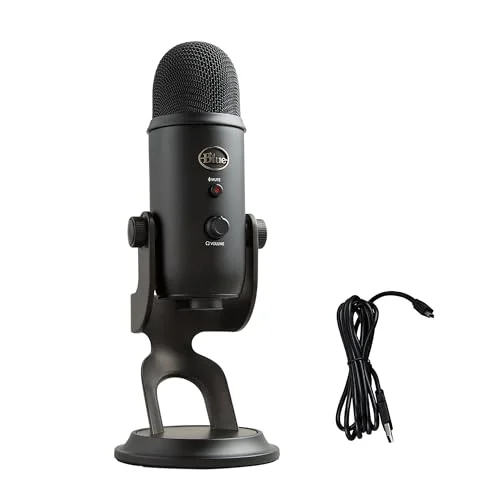
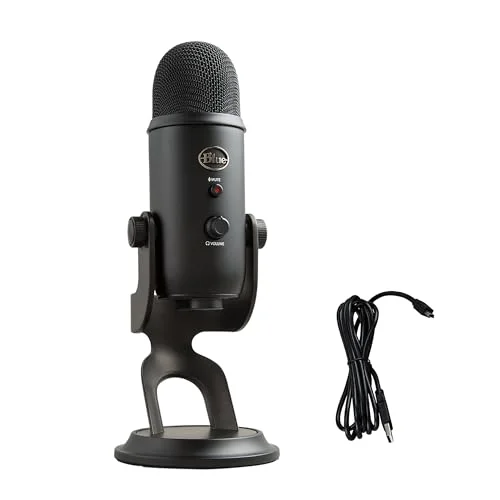
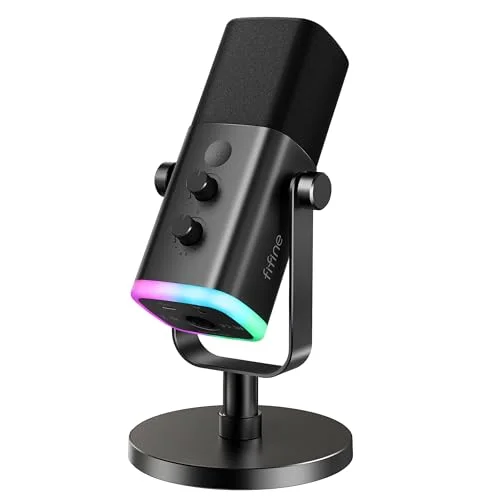
Upgrade your microphone if you need consistently close, present voice for streaming, podcasting, or competitive play. External USB microphones or XLR microphones with an interface deliver better proximity effect and clarity than most headset mics. For players who value mobility, choose a headset with a proven unidirectional boom and true noise-cancelling capsule rather than only software-based suppression.
Buy decisions have trade-offs: dedicated mics reduce headset portability and add desk footprint but give much better presence and control over gain and EQ. After comparing the main options side by side, a USB condenser with a built-in gain knob is the easiest upgrade for players who want to keep simple PC routing without an audio interface.
Common troubleshooting mistakes and what to avoid
- Assuming console or app updates didn’t change settings. Updates often reset device defaults.
- Testing only with friends – use a local recording to eliminate network effects before asking others for feedback.
- Over-relying on noise suppression without understanding its voice-shaping effect. Aggressive settings remove important speech detail.
- Ignoring headset firmware or driver updates when hardware first shows subtle changes. Firmware can fix or introduce audio routing bugs.
- Replacing hardware before ruling out simple software or routing errors. Test mic with a phone or another computer first.
Avoid these mistakes to save time and avoid unnecessary purchases.
Practical
Room-mic pickup: a player reported distant-sounding audio despite close mic placement. The cause was an omnidirectional headset capsule plus aggressive noise suppression enabled in the VoIP app. The fix was switching to push-to-talk and disabling suppression; teammates reported an immediate improvement.
Wireless dongle issue: another user heard their voice come through thin when connected to a USB dongle on the front PC panel. Replugging the dongle into a rear port and disabling the headset’s software “ambient noise reduction” restored presence. That pointed to interference and bundled processing in the dongle firmware.
Controller routing on console: a PS player’s headset mic switched to the controller’s built-in mic after a firmware update. Forcing the headset as the default in the console’s Sound settings fixed the problem. Those scenarios show that the same symptom can have different root causes – test the simplest changes first.
FAQ
Why does my mic sound fine in a local recording but far away to teammates?
A local recording bypasses network processing and some app-level suppression. Apps like Discord and console party chat can apply noise suppression or AGC live; compare a local recording to a live call after disabling app-level processing to isolate the problem.
Will boosting microphone volume in Windows always fix a distant sound?
Increasing OS-level input gain can raise level but may also introduce noise or trigger AGC in apps, which can reduce clarity. Use gain boosts cautiously and test with processing features disabled.
Can a broken foam windscreen cause distant-sounding audio?
Yes. A damaged or misplaced foam can alter high-frequency response and reduce perceived proximity. Replace or reposition the foam and re-test.
Should I enable push-to-talk to fix this problem?
Push-to-talk prevents voice-activation thresholds from cutting your initial consonants and can avoid AGC behavior on some platforms. Use it if voice-activation or sensitivity settings are causing clipping of your speech start.
How do I know if the headset mic itself is failing?
Test the mic on another device and listen for crackles or sudden level drops when moving the boom or cable. If the issue follows the headset to multiple devices, the hardware is likely faulty.
Does microphone polar pattern matter for gaming voice clarity?
Yes. Cardioid/unidirectional capsules generally give better direct-voice pickup and less room noise compared with omnidirectional capsules, improving perceived proximity and intelligibility.
Short verdict: start with mic position and device selection, then disable live audio processing for tests; those steps fix most cases where a gaming headset mic sounds far away in game chat. If tests show the headset fails across multiple devices and apps, consider repair or replacement.
Next step: run the step-by-step checks now – reposition the mic, record locally, and toggle noise-suppression off in your chat app. If you still hear a distant voice after those checks, plug the headset into another device and compare the results before buying new gear.

Leave a Reply