
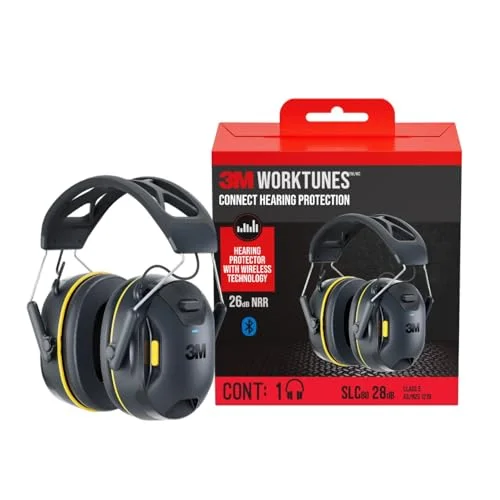
Connecting your 3M WorkTunes headphones should be straightforward, but many users get stuck in the Bluetooth menu or forget the pairing steps entirely. Whether you’re on a worksite, mowing the lawn, or just trying to stream music safely, knowing how to connect these headphones makes a difference.
This guide walks through pairing for every model, plus picks for gear that makes the process smoother.
Why Pairing WorkTunes Can Trip You Up
3M WorkTunes headphones mix hearing protection with Bluetooth audio, but the pairing process varies by model. Some have dedicated buttons, others rely on voice prompts, and a few need a reset if they’ve already connected elsewhere.
Understanding these quirks helps you avoid frustration and get back to your work or music faster.
The first challenge with 3M WorkTunes headphones is that not every model pairs the same way. Some models, like the standard Connect or the AM/FM variant, use a physical Bluetooth button. Others, like the Solar or newer versions, rely on automated prompts or companion apps.
This means you cannot assume one set of steps works across the board. If your headphones previously connected to another device, they may not appear in your phone’s Bluetooth list until you reset them or force a new pairing mode.
Additionally, the ear muffs themselves can be sensitive to movement or moisture, which sometimes interrupts pairing midway.
Turn off the headphones fully and wait a few seconds.
Press and hold the power or Bluetooth button until the LED flashes blue and red.
Open your device’s Bluetooth settings and look for a WorkTunes or 3M device name.
Select it from the list and confirm any pairing prompts if asked.
Listen for a voice or tone confirming the connection once it links up.
Picks To Help You Connect WorkTunes Headphones
While 3M WorkTunes headphones are built to connect on their own, the right accessories or updated models can make pairing faster and more reliable. Below are products that support or enhance the connection process, whether you need easier resets, better pads, or stronger builds.
|
1
|
3M WorkTunes Connect Wireless Hearing Protector with Bluetooth | Bluetooth Technology Hear |

Simple Bluetooth pairing with a dedicated button.
The 3M WorkTunes Connect Wireless Hearing Protector is the standard Bluetooth version with a 26 dB NRR. It pairs easily using a power button hold, making it ideal for users who want a no-fuss connection. The high-fidelity speakers deliver clear audio even in noisy environments.
It’s a solid pick for general use, but lacks features like AM/FM radio or solar charging. Some users may find the padding firm at first, though most adapt quickly.
|
2
|
3M WorkTunes Connect + AM/FM Wireless Hearing Protector with Bluetooth | Bluetooth Hearing |

Adds AM/FM radio for more entertainment options alongside Bluetooth.
The WorkTunes Connect + AM/FM model keeps the same 26 dB NRR but adds built-in radio with three EQ settings. Pairing is handled through the same Bluetooth button, so the process stays familiar. Great for users who tune in as much as they stream.
The radio reception can vary indoors, but outdoors it’s strong. Sound quality dips slightly compared to the base model due to radio tuning hardware sharing space.
|
3
|
3M WorkTunes Connect + Solar Wireless Hearing Protector with Bluetooth | Bluetooth Technol |

Solar charging reduces downtime, supporting consistent pairing readiness.
The Solar variant features a Powerfoyl solar cell that charges in light, keeping the battery topped up for faster reconnects. Bluetooth 5.0 ensures stable pairing with most phones and tablets. It maintains the same 26 dB NRR as others.
Indoor charging isn’t as effective as direct light, and the solar panel adds slight weight. Still, it’s a strong pick for frequent outdoor users who rarely dock their gear.
|
4
|
3M WorkTunes Connect Hearing Protector with Bluetooth Wireless Technology, 24 dB NRR, Hear |

Long battery life means fewer disconnects and faster reconnect times.
This Connect variant lists 40+ hours of battery life and uses USB-C charging for modern convenience. Bluetooth pairing mirrors the others, and the high-fidelity speakers keep audio crisp. It skips the volume limiter found on other models.
The lack of a volume control limiter may be a safety concern for some users. Otherwise, it offers the longest runtime and cleanest charge port design.
|
5
|
PROHEAR FEP01-1Pair Replacement Foam Ear Pads (Upgraded) for 3M WorkTunes Connect(90543, 9 |

Fresh ear pads restore comfort and seal, preventing distractions during pairing.
PROHEAR’s replacement foam ear pads fit the WorkTunes Connect series directly. Snapping them in keeps padding soft, which prevents slippage while you fumble with buttons or menus. They’re compatible with several models and install without glue.
Each pair lasts roughly six months with heavy use, per the brand. Cleaning is easy with a damp cloth, but do not submerge them.
|
6
|
for 3M WorkTunes Replacement Ear Pads Headphones Connect Hearing Protection with Noise Can |

Four-pack of pads ensures you’re never stuck with worn gear mid-shift.
These foam replacement pads ship in a four-pack for the WorkTunes Connect family. They snap in easily and maintain the same noise seal as originals. Multiple pairs mean fewer interruptions from discomfort during long pairing sessions.
They lack branded branding, which some users prefer. Quality feels consistent with PROHEAR’s other offerings, and installation tools aren’t required.
|
7
|
3M WorkTunes Connect + AM/FM Hearing Protector with Bluetooth Technology, Ear protection f |
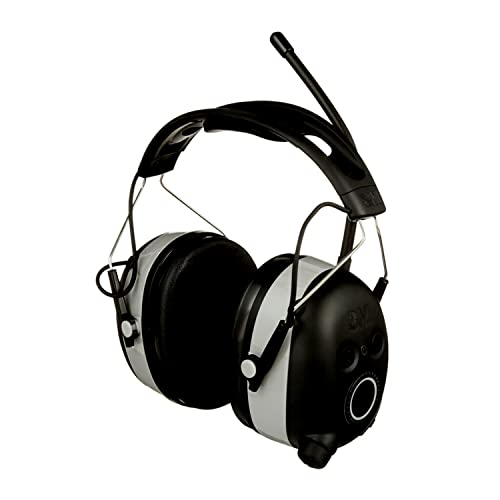
Built-in mic and audio assist simplify call pairing and setup.
This AM/FM + Bluetooth model includes an integrated mic for calls and audio assist prompts for setup. Pairing follows the same button-hold method, but spoken guidance helps walk users through the process step-by-step. It lists 24 dB NRR.
Audio assist can be loud in quiet settings. The mic picks up wind noise outdoors, but works well indoors. Bass boost improves music quality noticeably.
|
8
|
for 3M WorkTunes Replacement Ear Pads Headphones Connect Hearing Protection with Noise Can |

Two-pack of pads keeps pairing gear fresh without overstocking.
The two-pack replacement pads match the four-pack design and fit the WorkTunes Connect range. They install quickly and keep the seal tight so distractions don’t interrupt pairing or audio tests. Ideal for users who go through pads faster than average.
They don’t include a removal tool, though fingers work fine for most. Pricing beats buying singles long-term, especially for frequent users.
|
9
|
Silicone Gel for 3M WorkTunes Ear Pads Headphones Connect Hearing Protection with Noise Ca |

Silicone gel padding improves breathability and hygiene for daily pairing.
These silicone-based ear pads replace worn foam pads and offer a cooler fit for daily pairing routines. They snap in like standard pads and retain the same 26 dB seal. Their wipeable surface helps during shared use or sweaty conditions.
Silicone doesn’t compress as much as foam, so some users notice a lighter seal. Breathability improves after long sessions, though they can trap heat in hot weather.
|
10
|
3M WORKTUNES HEARNG PROTCTR 15.52 ounces |

No batteries or Bluetooth means zero pairing issues and reliable function.
This passive WorkTunes model skips Bluetooth altogether, relying on a 3.5mm cable and 24 dB NRR. Since there’s nothing to pair, it sidesteps common syncing frustrations. Weighs under a pound, making it great for travel or backup use.
You’ll need an adapter for newer phones without headphone jacks. Hand-wash only care instructions are simple, but the plastic housing attracts fingerprints easily.
Each of these products supports or simplifies the connection process for WorkTunes headphones. From fresh ear pads to battery-rich models, they cover common pain points like slipping, dead batteries, and slow pairing.
Common Pairing Problems and How to Fix Them
Even after pairing successfully, issues can pop up later. Below are the most frequent problems users face and how to solve them fast.
Problem and Quick Fixes
| Problem | Cause | Fix |
|---|---|---|
| Not showing in Bluetooth list | Already paired or inactive mode | Reset by holding power button 10 seconds |
| Pairing fails halfway | Low battery or interference | Charge fully and retry in a quiet spot |
| Connects but no audio | Wrong output profile selected | Forget device and re-pair in audio mode |
| Keeps disconnecting | Out of range or signal blocked | Stay within 10 feet and remove obstacles |
- Always start with a powered-off headset before pairing.
- Delete old pairings from both devices before trying again.
- Keep firmware updated if your model supports companion apps.
- Avoid pairing near microwaves or other strong wireless sources.
- Store headphones in a cool, dry place to preserve internal components.
After Pairing: Use, Maintain, Replace
Once connected, keeping your WorkTunes in top shape prevents future pairing headaches. Small habits go a long way.
After pairing, treat your WorkTunes like any precision gear. Wipe down ear pads weekly, check the headband tension, and ensure the charging port stays dry. These routines protect internal wiring that handles both audio and Bluetooth signals. Neglecting them can lead to intermittent connections, even if pairing initially succeeds.
Most problems users blame on Bluetooth are actually hardware wear.
Inspect ear pads for cracks or compression loss and replace if needed.
Clean the charging port with a dry brush or cotton swab.
Test both volume levels and call mic clarity during idle moments.
Re-pair to your main device once a month to refresh the link cache.
Pairing your 3M WorkTunes headphones starts with a simple button combination and a clear device list. Try holding the power button until the LED flashes, then choose your model from the Bluetooth settings today.

Leave a Reply